Chrome extension · Local export
Export Booking.com search results to structured CSV
Turn hotel stays, flights (one-way and round-trip), and attractions into clean spreadsheet rows—built for analysts, operators, and researchers who need repeatable data without copy-paste.
Three export modes with dedicated field sets. Processed locally in Chrome—your search results are not uploaded to NioMaker during export.
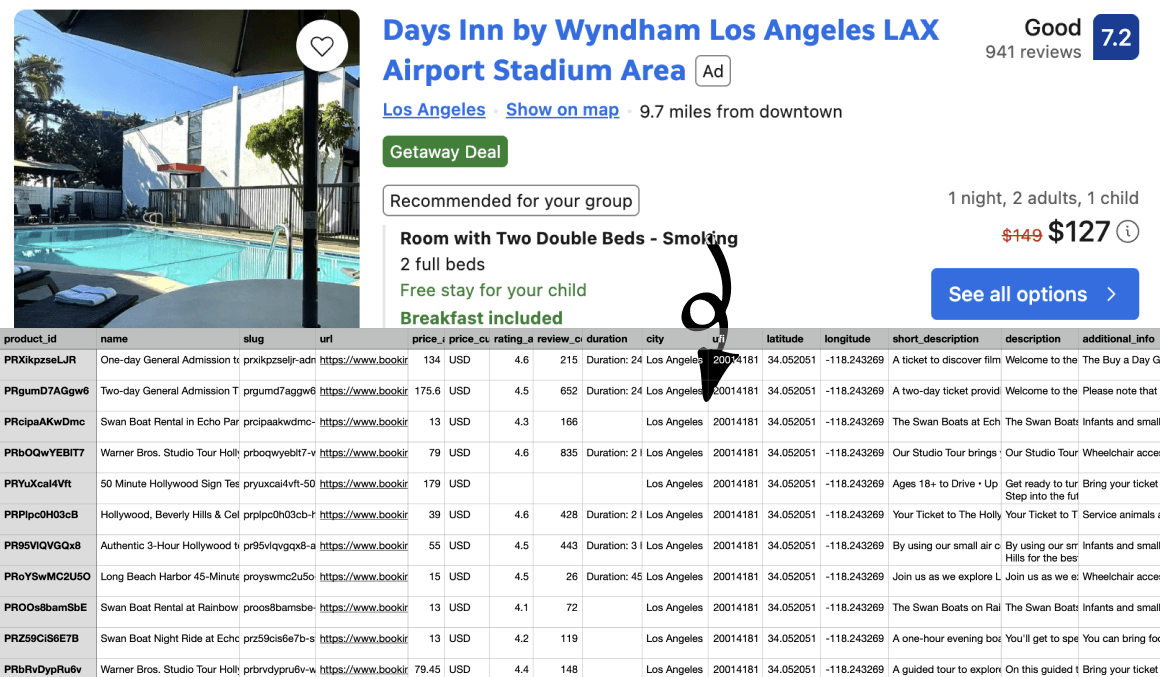
Everything you need for Booking.com search exports
One extension for stays, flights, and attractions—structured the way travel and market analysts actually work.
Stays, flights, and attractions
Export search results from Booking.com hotel listings, flight results (one-way and round-trip), and things-to-do pages—one extension, three modes.
Fields matched to each search type
Stays include pricing and star ratings; flights include outbound/inbound legs and fare breakdown; attractions include UFI, offers, and geo coordinates.
Round-trip flight coverage
Capture trip type, per-leg times and airports, cabin class, fare totals, and checked/cabin baggage allowances in one export.
Location-ready columns
Latitude, longitude, city, UFI, and location display fields—ready for mapping, market sizing, and destination analysis.
CSV-ready for sheets and BI
Stable column names for Excel, Google Sheets, BI tools, and pipelines—no manual cleanup after export.
Runs in your browser
Search results are processed locally in Chrome; your export is not uploaded to NioMaker during extraction.
Three export modes, structured fields
Each search type exports its own column set—one row per listing, ready for analysis and reporting.
Stays
Hotel search results with pricing, ratings, location, star rating, meal plan, bed options, and sold-out status—one row per listing.
21 fields
- property_id
- name
- page_name
- property_url
- city
- address
- country_code
- latitude
- longitude
- review_score
- review_count
- review_score_text
- star_rating
- location_display
- distance
- price_display
- is_sold_out
- meal_plan
- bed
- beds
- exclude_charges
Questions about field coverage? Check the FAQ or email help@niomaker.com.
How Booking Scraper works
Three steps from the Booking.com search page to structured CSV.
Open a Booking.com search page
Go to hotel search results, flight search results, or things-to-do listings on Booking.com for your destination and dates.
Export from the extension
Click the extension icon, choose Stays, Flights, or Attractions, then start the export for the current search results page.
Download your CSV
When the export finishes, download the CSV from the extension’s export dashboard.
Simple pricing for Booking.com search exports
Start on real Booking.com search pages. Upgrade when you need unlimited results per export.
Free
Try exports on stays, flight, and attraction search results before you scale.
- Up to 20 search results per export
- Stays, flights, and attractions—all field sets included
- Up to 47 structured fields for flight exports
- Extension updates while on the free tier
Pro
For teams that export Booking.com search results regularly for reporting, monitoring, and analysis.
Pro removes the per-export result cap so you can pull full search result sets in one go.
- Unlimited search results per export
- Everything in Free, with no per-export limit
- All export modes: stays, flights, and attractions
- Priority support from the NioMaker team
- Updates included while subscribed
Ready to export your next search results?
Install Booking Scraper and move hotel, flight, and attraction search data into your stack without the copy-paste tax.
Get Booking ScraperFrequently asked questions
Which Booking.com pages are supported?
The extension supports three export modes: hotel stays search results, flight search results, and attractions (things-to-do) search results. Open the relevant search page on Booking.com, then export from the extension.
Do export fields differ by search type?
Yes. Stays, flights, and attractions each have a dedicated field set—for example, stays include price_display and star_rating, while flights include outbound/inbound leg and fare columns. See the Data section above for the full column lists.
How do round-trip flights work?
Flight exports include trip_type plus outbound (out_*) and inbound (in_*) fields for round-trip itineraries, along with summary columns for the full itinerary. Choose Flights mode when you are on a Booking.com flight search results page.
What file format do exports use?
Exports download as CSV with consistent column headers, ready to open in Excel, Google Sheets, or import into analytics and data tools.
How do I switch between stays, flights, and attractions?
Select the export mode in the extension before you start an export. Pick the mode that matches the Booking.com search page you have open.
Is Booking Scraper affiliated with Booking.com?
No. Booking Scraper is built by NioMaker and is not endorsed by or affiliated with Booking.com. Trademarks belong to their respective owners.
What should I know about terms of use?
You are responsible for complying with Booking.com’s terms of service, applicable laws, and any agreements that govern your access to search data. Use the extension only for scenarios you are authorized to export.
Do you store the search results I export?
This website does not run the export for you—the extension operates in your browser. See our Privacy Policy for how NioMaker handles account or support-related data.